Your Ethernet Is Probably Running at 100 Mbps, and Wi-Fi Is Beating It
A wired link stuck at 100 Mbps instead of 1000 can lose to Wi-Fi. This shows how to read the link speed on Windows, Mac and Linux and which swaps separate a bad cable from a bad port or adapter. Intel says the cable is almost always the cause.
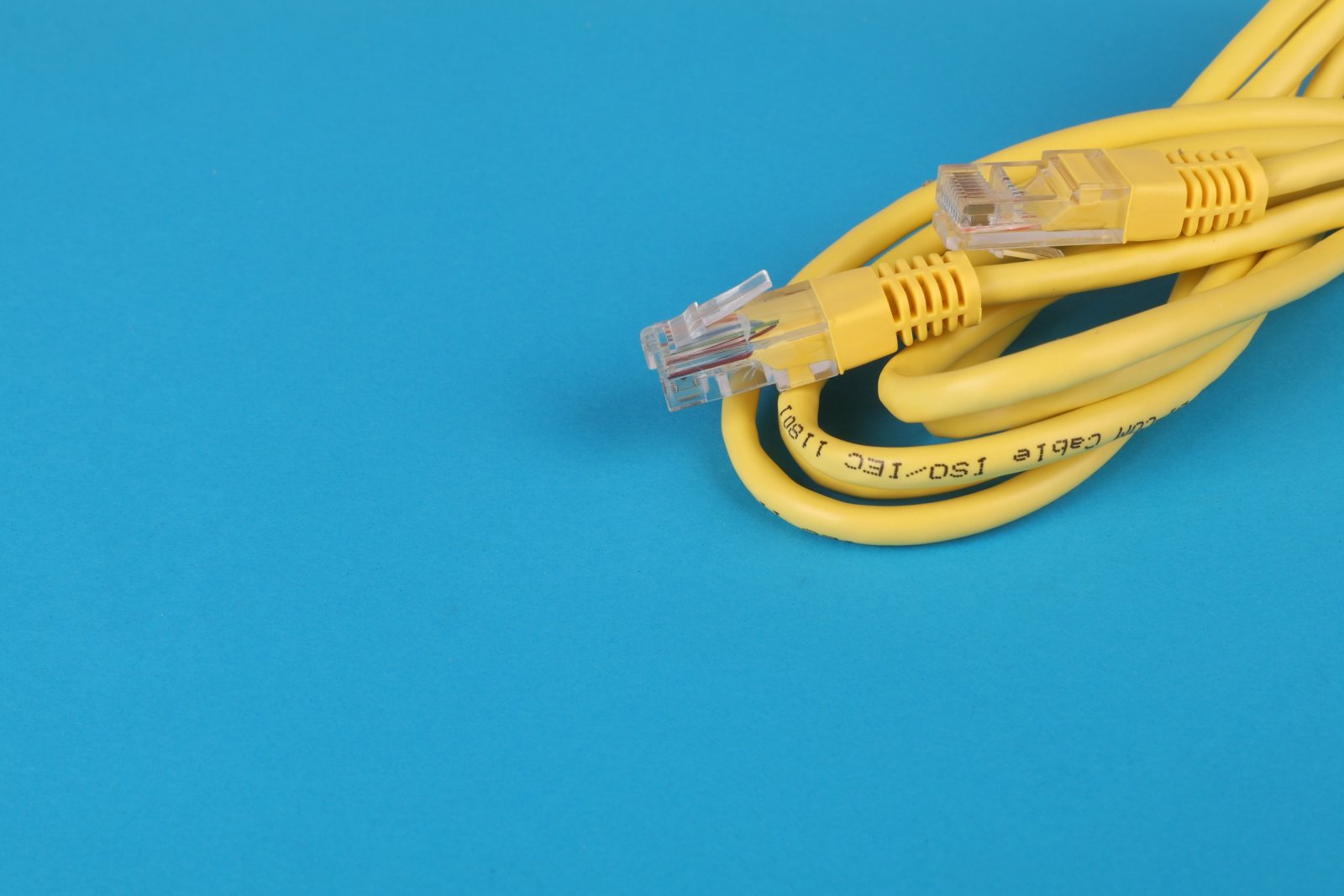
views
An Ethernet adapter that reads 100 Mbps when it should read 1000 is running at a tenth of its rated speed, and that is enough for Wi-Fi to beat it.
A 100 Mbps link can't carry more than 100 Mbps, whatever the plan on the bill says.
The usual cause is the cable. On a healthy gigabit link, Intel's support page says, the speed "will read as 1.0 Gbps." When it reads 100 Mbps instead, "the issue is almost always an issue with an Ethernet cable, though it could be a few things."
Engadget says a 100 Mbps reading on a 1000 Mbps plan means there is a local problem.
Reading the number is free, and no fix gets cheaper than that.
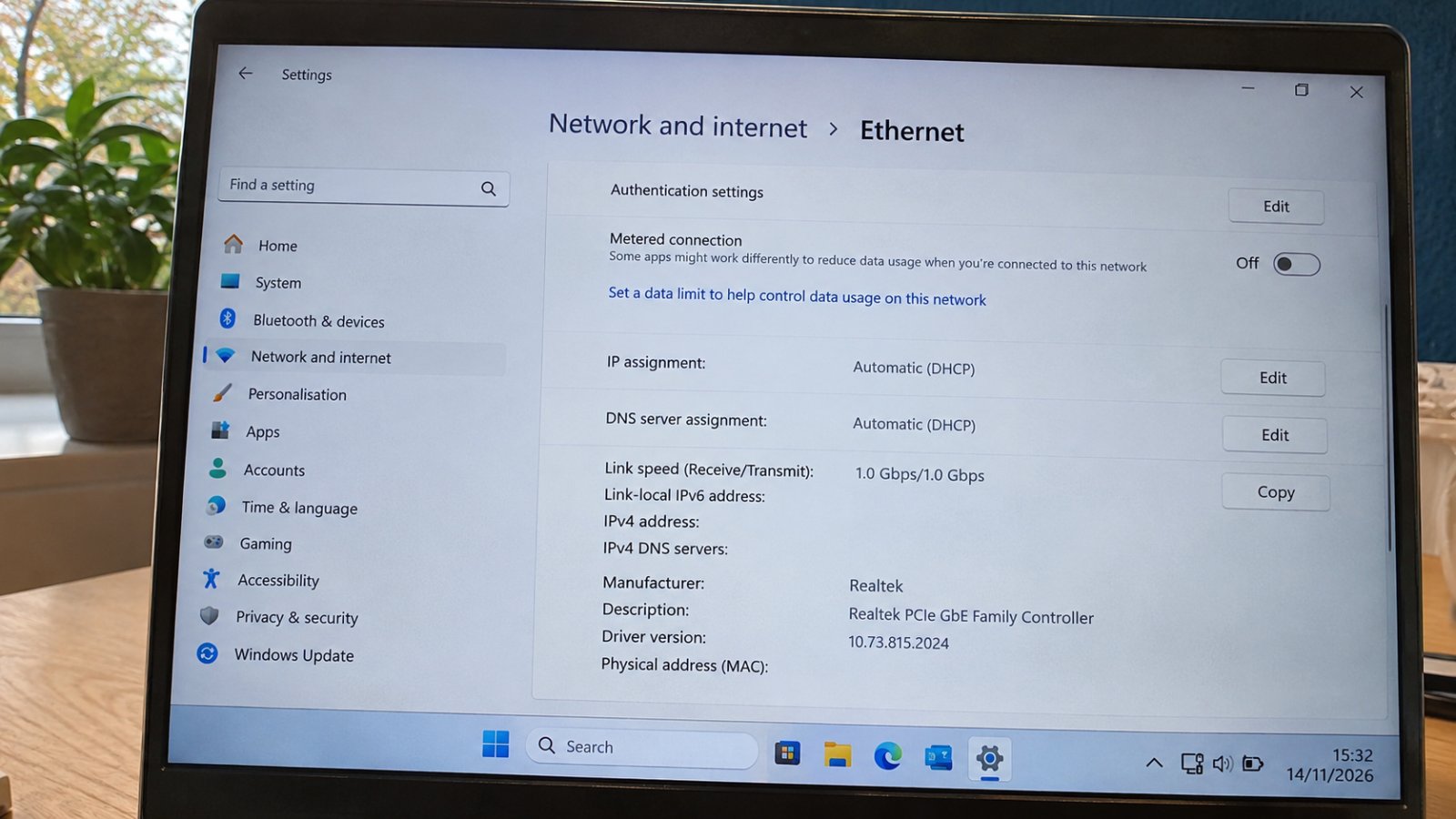
On Windows 11, Engadget's how-to describes the route as Settings, then Network and internet, then Ethernet, where a line labelled "Link speed (Receive/Transmit)" gives the figure. A working gigabit connection shows 1000 there.
For a Mac, the same how-to describes a longer trip: System Settings, Network, Ethernet, then Details and Hardware, where the Speed field shows what the port settled on. The guide also says to leave the configuration on Automatic.
Linux users can run ethtool with the interface name to print the link details. A guide on OneUptime shows a healthy card reporting Speed: 1000Mb/s, full duplex and link detected, and marks a 100Mb/s line with a note that it "Should be 1000Mb/s".
A reading of 1000 clears the link, and the search moves on to the settings covered further down.
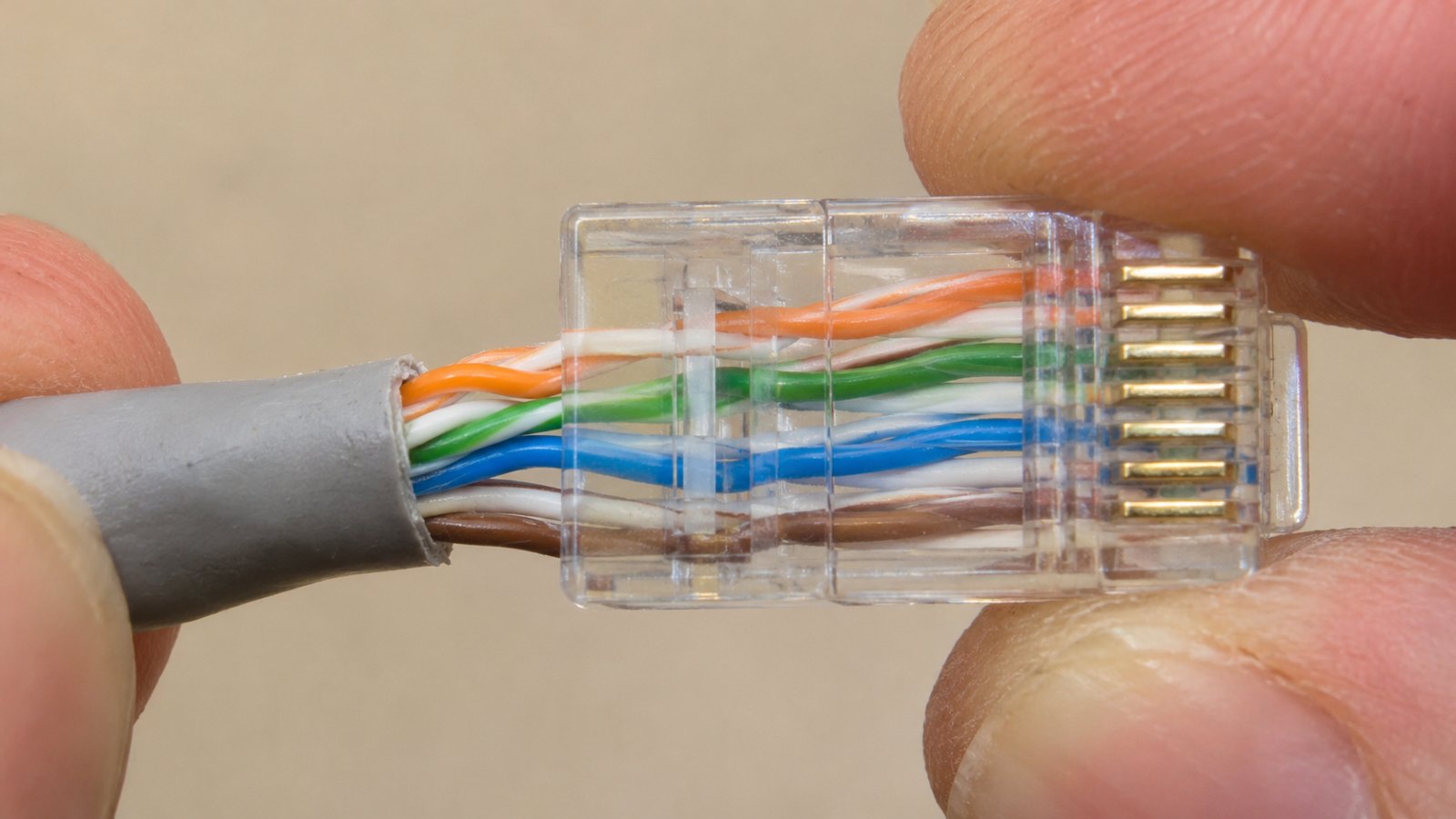
A reading of 100 needs a little background. Gigabit Ethernet over copper uses all four twisted pairs in the cable, while 100 Mbps Ethernet uses only two.
Intel's page adds that a "failed" Cat 5e or Cat 6 cable "will usually still work at 100 Mbps."
So a cable can fail and keep its job, just at a tenth of the pay.
How the pairs are made matters as well. Engadget notes that "if one of the pairs is incorrectly twisted, it'll impact the overall speed," and the socket at either end can be at fault too: "Any type of damage to the internal contacts could limit speed or render the port unusable."
The grade printed on the jacket is worth reading. The OneUptime guide lists the causes of a 100Mb/s reading as "usually a bad cable (Cat5 instead of Cat5e/Cat6), a failing switch port," so a cable marked plain Cat5, with no e, belongs on the suspect list.
Age counts against a cable as well, and Engadget doesn't soften it: "Using old and out-of-date cables will absolutely cap the speed of any wired connection."
Step two costs a spare cable. The OneUptime guide's first fix is four words long, "Try a different cable." Change one part at a time, so that whichever swap fixes the reading points to the part that was broken.
- Plug in a short cable that you know links at gigabit on another device, keeping the same computer and the same router port.
- If the reading stays at 100, move that good cable to a different port on the router.
- If it still says 100, try a different adapter, or a different computer, on the same cable and port.
If none of the swaps moves the number, the hardware itself may be old. Cables and Kits notes that "Older routers, switches, or NICs may only support slower speeds (like 100 Mbps or 1 Gbps)." No cable gets more than 100 out of a port built for 100.
If you're buying a replacement, Cable Matters gives these figures for three common categories:
- Cat5e: up to 1 Gbps, 100 MHz, 100 metres
- Cat6: 250 MHz, up to 10 Gbps at shorter distances, up to 55 metres
- Cat6A: 10 Gbps over the full 100 metres, 500 MHz
Cat8 sits well above all three. Cables and Kits describes it as a cable of up to 2000 MHz designed for 25/40 Gbps data rates.
A gigabit port needs far less than that. Engadget's how-to says both Cat5e and Cat6 support gigabit Ethernet, and Intel says Cat 6 is preferred to Cat 5e.
Buying Cat8 to cure a 100 Mbps reading means paying for 25/40 Gbps to get 1.
What the wire is made of counts too. Engadget steers readers away from copper-clad aluminium (CCA), since "CCA cables tend to degrade quickly and break easily," and a cable that breaks easily is a poor saving.
Settings come last, and the main one is best left alone. Duplex is whether a link can send and receive at the same time, and auto-negotiation is how the two ends agree on duplex and speed. Intel says to leave Speed and Duplex on auto-negotiation and adds, "There is no option for 1.0 Gbps Full Duplex with our Ethernet drivers." The OneUptime guide warns that forcing 1Gbps may not work either.
Intel, Engadget and OneUptime cover the link speed reading, the cable, the port and auto-negotiation. None of them gives a tested fix for power-saving features, drivers, VPNs, QoS, the ISP or malware, so what follows explains what those are and where to find them. It isn't a cure.
Energy-Efficient Ethernet is a power-saving feature that lets the link idle between bursts of traffic. On Windows it sits in Device Manager, in the network adapter's Properties, on the Advanced tab, and the exact name varies from one adapter maker to the next. Speed and Duplex are on the same tab.
A driver is the software that lets the operating system talk to the adapter. Its version and date are on the Driver tab of that same Properties window, and updates come through Windows Update or the PC or adapter maker's support site.
A VPN sends traffic through an encrypted tunnel to a remote server, so a speed test run with it switched on measures that whole route, not just the line into the house. It does not change the link speed the adapter reports.
QoS, short for Quality of Service, is a router setting that puts some traffic ahead of other traffic, and on many routers it can also cap what a single device gets. It lives in the router's admin page, and a cap set there applies to a wired computer just as it does to a phone on Wi-Fi.
A fault on the ISP's side slows every device in the house, wired or not, while a bad cable slows only the machine on the end of it. Malware can use bandwidth in the background, and on Windows the Processes tab in Task Manager has a Network column showing which programs are using the connection.
The cheapest speed upgrade on a home network is often the cable nobody thought to replace.

Faizal Mokhtar
Earnings season is Faizal Mokhtar's busiest time, and he reads the reports closely. He also writes about markets and bank apps. Another regular topic is what jobs really pay, compared with the ads.
View profileMore from Faizal Mokhtar
View all →
Recommended for you
More stories →
Outlook is recovering on day two, and Microsoft says it has no indication of a hack

Which Xiaomi, Redmi and Poco Phones Get HyperOS 4, and Which Were Dropped

What the Red Dot on Your Apple Watch Means, and the Other Status Icons at the Top

Leave a Comment