Where Samsung, LG, Sony, TCL and Hisense Put the HDMI Setting for 4K HDR and 120Hz
Engadget says a per-port HDMI setting is needed for Dolby Vision and refresh rates above 60Hz. Here is what Samsung, LG, Sony, TCL and Hisense call their settings, where they sit, which cables Sony asks for and when to go back to Standard.
views
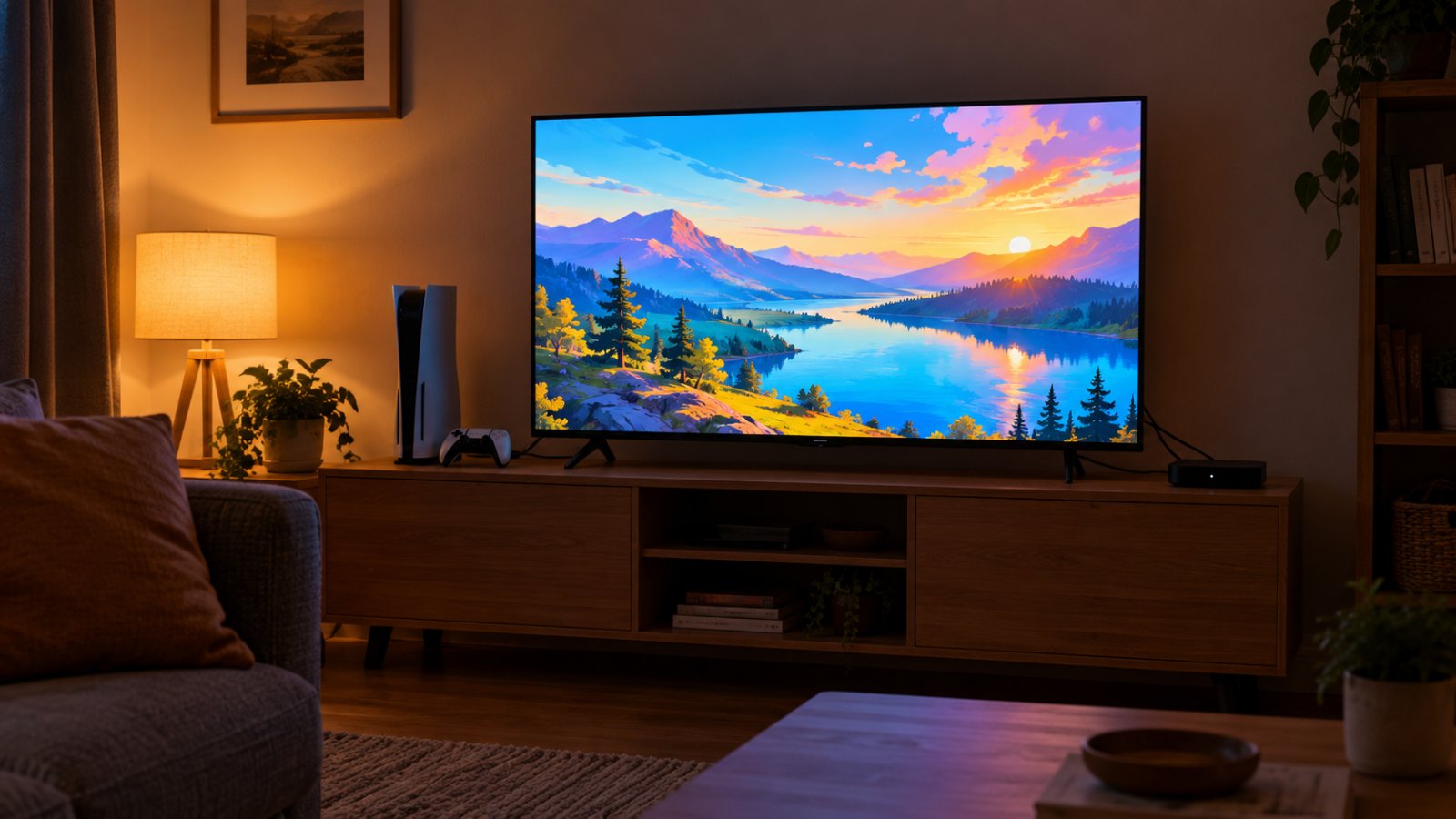
Samsung, LG, Sony and Hisense TVs use four different names for their per-port HDMI settings, and their descriptions don't all say the same thing. TCL's gaming guide mentions an enhanced HDMI setting but gives no exact name or menu path.
Engadget explains what that kind of setting does. You flip an HDMI input to Enhanced, or a variation of that name, and it describes the result as "unlocking the full bandwidth of each port." Engadget says you need it for Dolby Vision and for refresh rates above 60Hz. Its examples are Sony and Hisense TVs that run Google TV.
TCL's guide adds one check for consoles. If no 120Hz option appears, make sure the enhanced HDMI setting is on and use a certified HDMI 2.1 cable.
Where each brand puts it
Samsung's support page calls its setting Input Signal Plus and says it "enhances the input signal range for HDMI connections." It's under Settings > General > External Device Manager, where you pick the port. On 2018 and older models it was called HDMI UHD Color.
For LG, Engadget gives the path Settings > General > External Devices > HDMI settings > HDMI Deep Color. Engadget says Deep Color "simply extends color depth to the levels needed for HDR." It also says "no consumer TV can take advantage of anything more than 10-bit color."
Sony's help guide puts the setting under Settings > Channels & Inputs > External inputs > HDMI signal format/VRR, where you choose the input. It lists three options: Standard format, Enhanced format (ALLM) and Enhanced format (Advanced). Sony puts ALLM in one option's name and VRR in the menu's name, so at least you know you're in the right menu.
Tom's Guide gives the Hisense path as Settings > Picture > Advanced Settings > HDMI Format, where you change Standard to Enhanced for each port. The full Tom's Guide article was not available at the time of writing.
| Brand | Port setting | Menu path | Gaming settings named in the source | Source |
|---|---|---|---|---|
| Samsung | Input Signal Plus (HDMI UHD Color on 2018 and older) | Settings > General > External Device Manager, then the port | Game Mode: Home screen, or Settings > General > External Device Manager > Game Mode Settings | Samsung |
| LG | HDMI Deep Color | Settings > General > External Devices > HDMI settings > HDMI Deep Color | Not available | Engadget |
| Sony | HDMI signal format: Standard format, Enhanced format (ALLM), Enhanced format (Advanced) | Settings > Channels & Inputs > External inputs > HDMI signal format/VRR, then the input | ALLM and VRR appear in this menu | Sony help guide |
| TCL | An enhanced HDMI setting, no exact name given | Not given | Use the port that supports 4K 120Hz, VRR and ALLM | TCL gaming guide |
| Hisense | HDMI Format: Standard or Enhanced, set per port | Settings > Picture > Advanced Settings > HDMI Format | Not available | Tom's Guide |
Sources read on 10 November 2026. Menu paths can change with software updates. None of the names above uses the word bandwidth.
Which cable Sony asks for
Sony's help guide asks for an 18 Gbps Premium High Speed HDMI cable for high-quality 4K. For 4K at 100 or 120Hz, it says you need an Ultra High Speed HDMI cable that supports 48 Gbps. It also says support depends on the model and region.
| What you want | Cable | Source |
|---|---|---|
| High-quality 4K on a Sony TV | 18 Gbps Premium High Speed HDMI | Sony help guide |
| 4K at 100 or 120Hz on a Sony TV | 48 Gbps Ultra High Speed HDMI | Sony help guide |
| No 120Hz option showing on a TCL | Certified HDMI 2.1 | TCL gaming guide |
Sources read on 10 November 2026. The cable is the one part of this you can't change from a menu.
Game Mode, ALLM, VRR, eARC and CEC
Samsung says Game Mode reduces input lag. TCL's guide says "ALLM (Auto Low Latency Mode) is the convenience feature" and "VRR (Variable Refresh Rate) helps keep the image stable when frame rates bounce around." Hisense Australia calls eARC an "expansion of the existing ARC solutions" and says it carries high-bitrate audio without an optical cable. A soundbar or receiver that uses it goes in the TV's HDMI port labelled ARC or eARC. CEC is the HDMI feature that lets connected devices send each other basic commands, such as power and volume.
Some menu names were not available at the time of writing. That covers Game Mode on LG, Sony, TCL and Hisense, ALLM and VRR on Samsung, LG, TCL and Hisense, and eARC and CEC on all five brands.
Setting it up, in order
Engadget reports that some TVs split Enhanced into two levels: one for HDR and a higher one for high refresh rates and VRR. It says consoles and PCs need the higher level, while streaming boxes and Blu-ray players mainly need the HDR level.
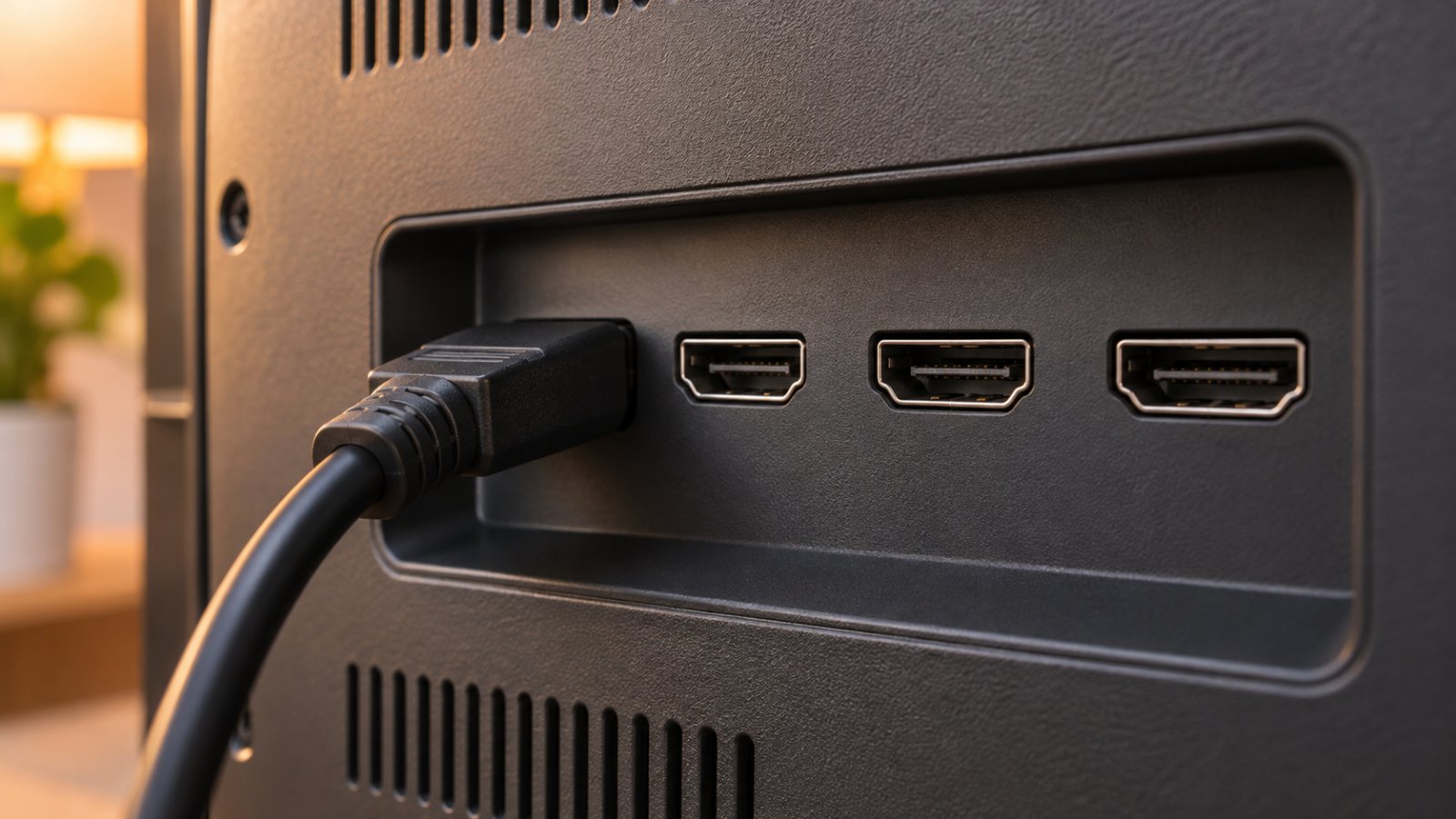
- Plug the console or PC into the port TCL describes as supporting 4K 120Hz, VRR and ALLM.
- Check the cable: Sony asks for 48 Gbps for 4K at 100 or 120Hz.
- Turn on that port's setting, using the brand table above.
- If the TV offers more than one Enhanced option, check its manual to see which does what.
- On a Samsung, turn on Game Mode.
- Open the console's video settings and look for a 120Hz option.
- No 120Hz option: TCL says to check the enhanced HDMI setting and use a certified HDMI 2.1 cable.
- Picture or sound wrong on a Sony: move the device to an input set to Standard format.
- No HDR from a PC on a Hisense U8K: RTINGS reports that HDR is disabled when FreeSync is on.
When Enhanced causes trouble
"When using Enhanced format (ALLM), picture and sound may not be output correctly." (Sony help guide)
If that happens, Sony's advice is to plug the device into an input set to Standard format. Sony's guide does not name the incompatible devices.
RTINGS reports that on the Hisense U8K, HDMI Format has to be set to Enhanced format for HDR to work with most sources. It also reports that HDR is disabled when FreeSync is on. FreeSync is AMD's version of VRR.

Duarte Pinheiro
For seven years, the night desk of a small guesthouse in Porto was Duarte Pinheiro's job. He sorted out lost bookings, dead chargers and guests who couldn't get online. Now he writes about travel and the internet side of...
View profileMore from Duarte Pinheiro
View all →
Recommended for you
More stories →
Instagram Now Guesses Age Worldwide: What a Teen Flag Changes, What Is Known About Undoing It
RTX 5070 Ti vs RX 9070 XT vs 4080 Super: Which to Buy for a First PC Build
Slim Magsafe Battery Pack Under $50

Leave a Comment