Where the Monitor Cable Goes on a Desktop With a Graphics Card
How to tell motherboard ports from graphics card ports on a desktop, check in Task Manager and Windows 11 Graphics settings which chip runs your game, fix a black screen after moving the cable, and what is known about the performance you get back.
views
A desktop tower with a graphics card in it has two sets of video sockets on the back, and a monitor cable will go into either one. One set belongs to the motherboard and the other to the card. Seen from behind a desk, with the dust and the tangle of other cables, the two can look much the same. Which one the cable sits in decides which chip draws the picture. That matters most when a new card makes no visible difference to a game. The checks below need a look behind the case and two Windows screens, and nothing else.
Is my cable in the wrong place?
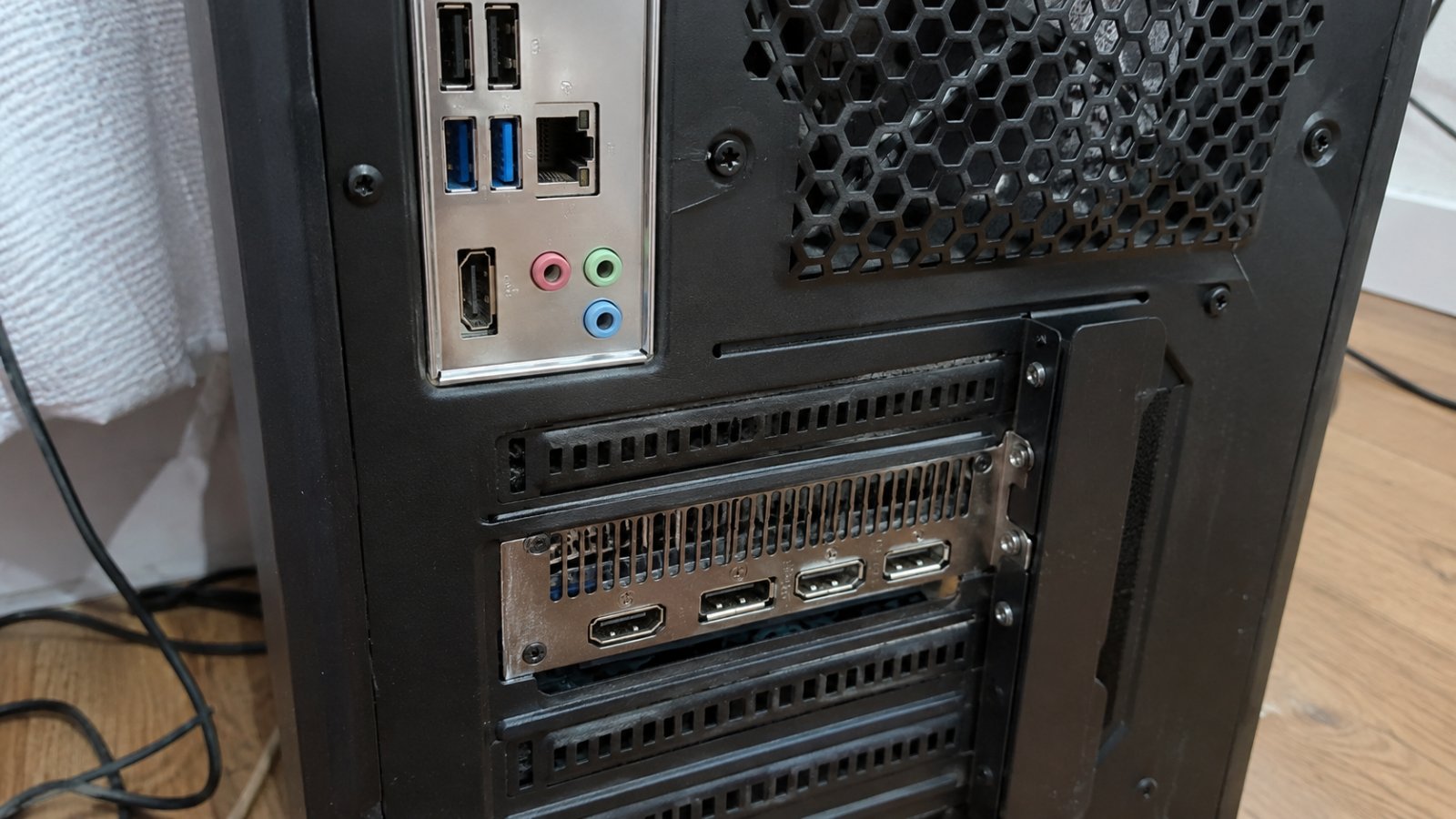
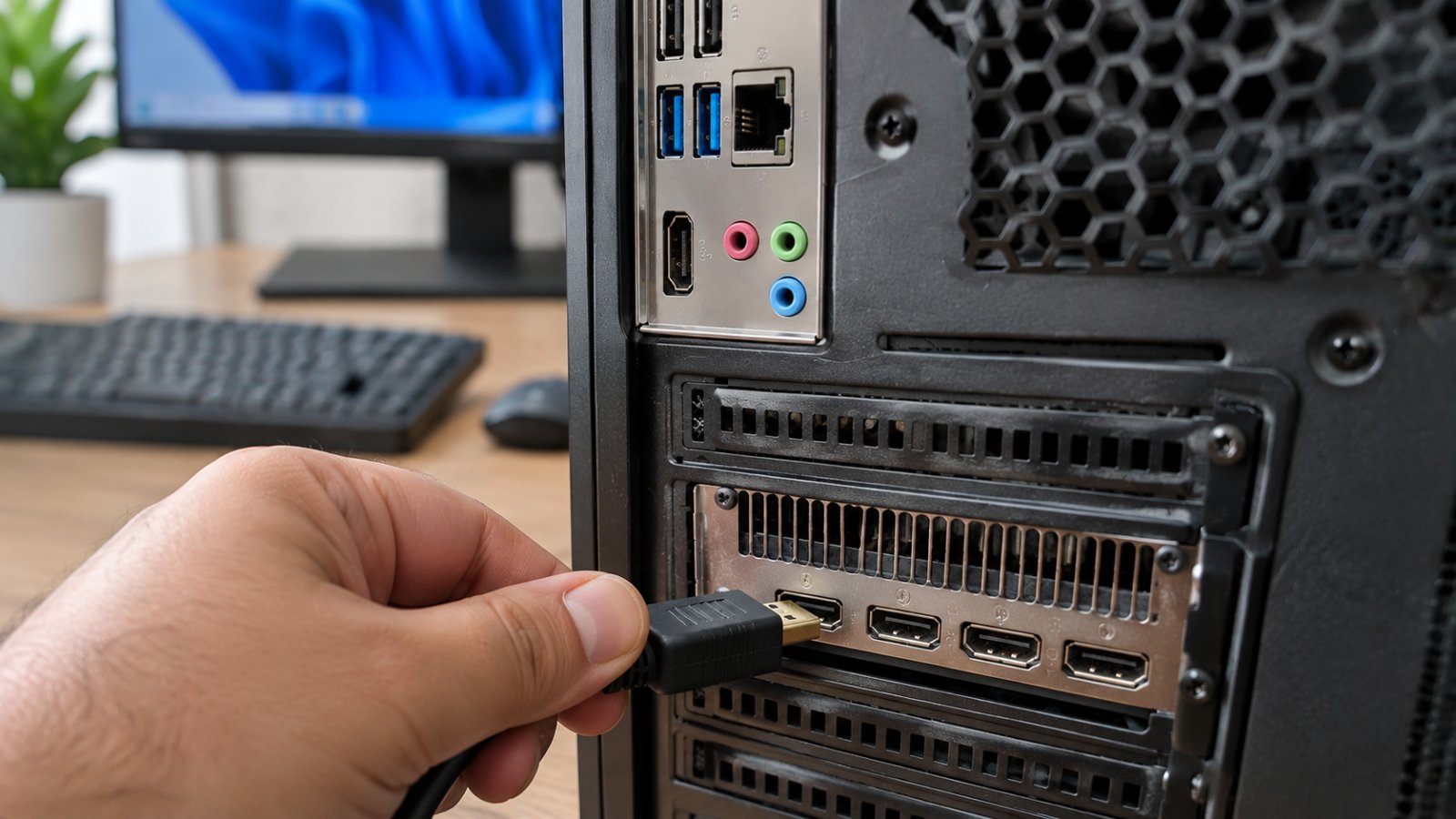
Possibly, and the row it sits in will tell you. On a desktop tower, the motherboard's own video outputs are usually in the panel near the top of the back, alongside the USB sockets, the Ethernet jack and the audio jacks. A graphics card's outputs usually sit lower down, in a short row of their own on a metal bracket across the expansion slots.
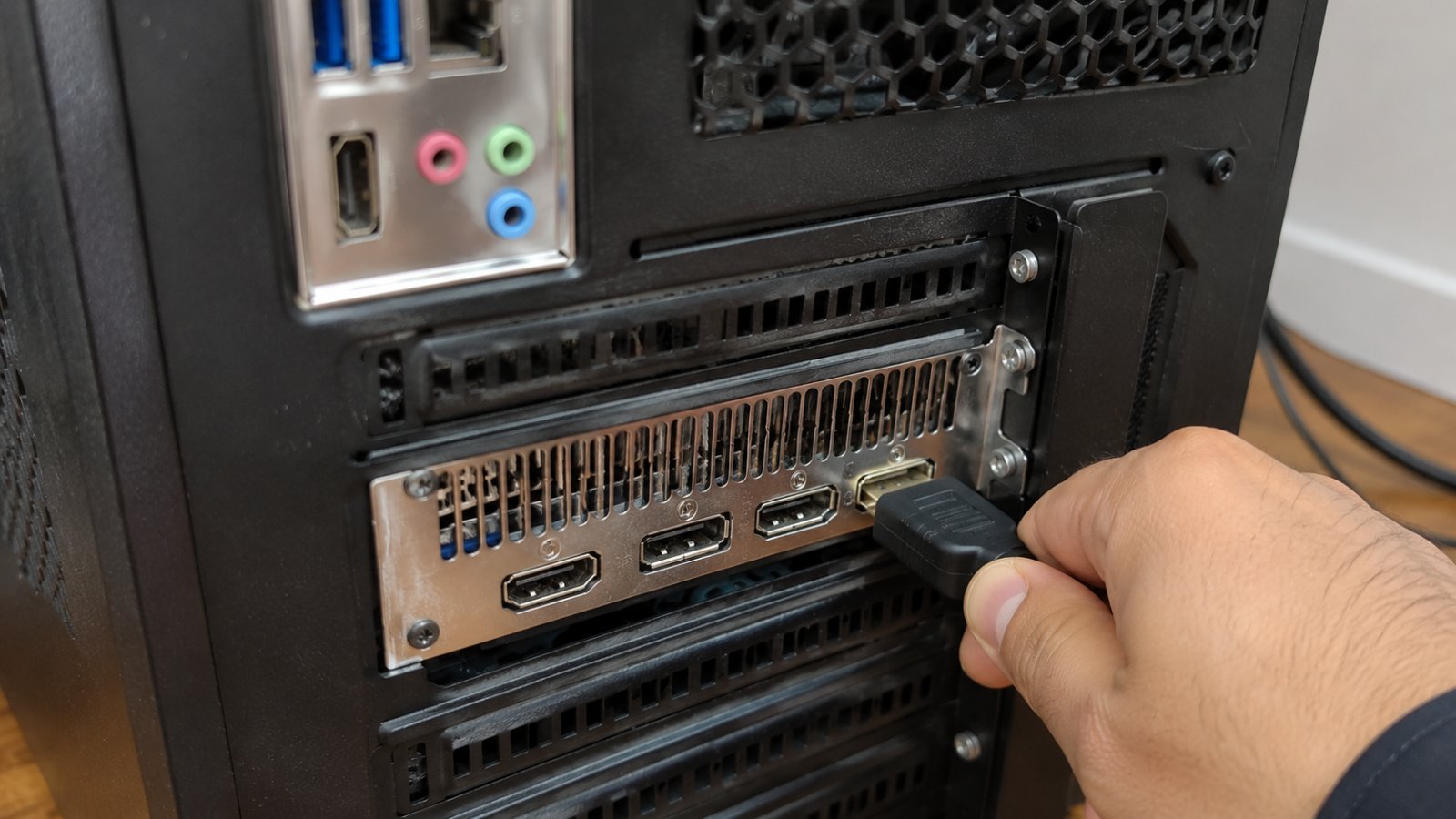
The shape of the plug won't settle it. Both rows can carry HDMI and DisplayPort sockets, and Engadget points out that the same cable fits either set of ports, “which isn't particularly helpful.” As understatements go, that one is generous. The same fit is what makes the mistake so easy.
Which row is right depends on what's inside the case. BGR's advice is to keep the monitor on the GPU to get the dedicated card's full power. In BGR's account, the motherboard outputs only suit processors with integrated graphics: AMD chips with a G in the name, and Intel chips without an F. “The important thing is to identify which hardware your desktop has,” it says.
Both halves of that are easy to check. A separate graphics card shows up as that lower bracket of outputs. The processor's name appears on the CPU page of Task Manager's Performance tab, the same tab used in the next section, so you can look for the G or the F without opening anything. If there is a card, the cable belongs on its bracket.
How do I confirm which chip is drawing the game?
Task Manager shows whether the card is busy, and Windows 11's Graphics settings show which chip the game is set to use. The Task Manager check comes from Intel's support page, which says to check whether your discrete GPU is being used in the Performance tab. Do it with the game running.
- Press Ctrl+Shift+Esc to open Task Manager. If it opens as a small window, click More details.
- Open the Performance tab and look down the left-hand list for the GPU entries. A PC with both an integrated chip and a card usually shows two, labelled GPU 0 and GPU 1, with each chip's name next to it.
- Start the game, then switch back to Task Manager while it keeps running.
- Click the graphics card's entry and see whether it is being used.
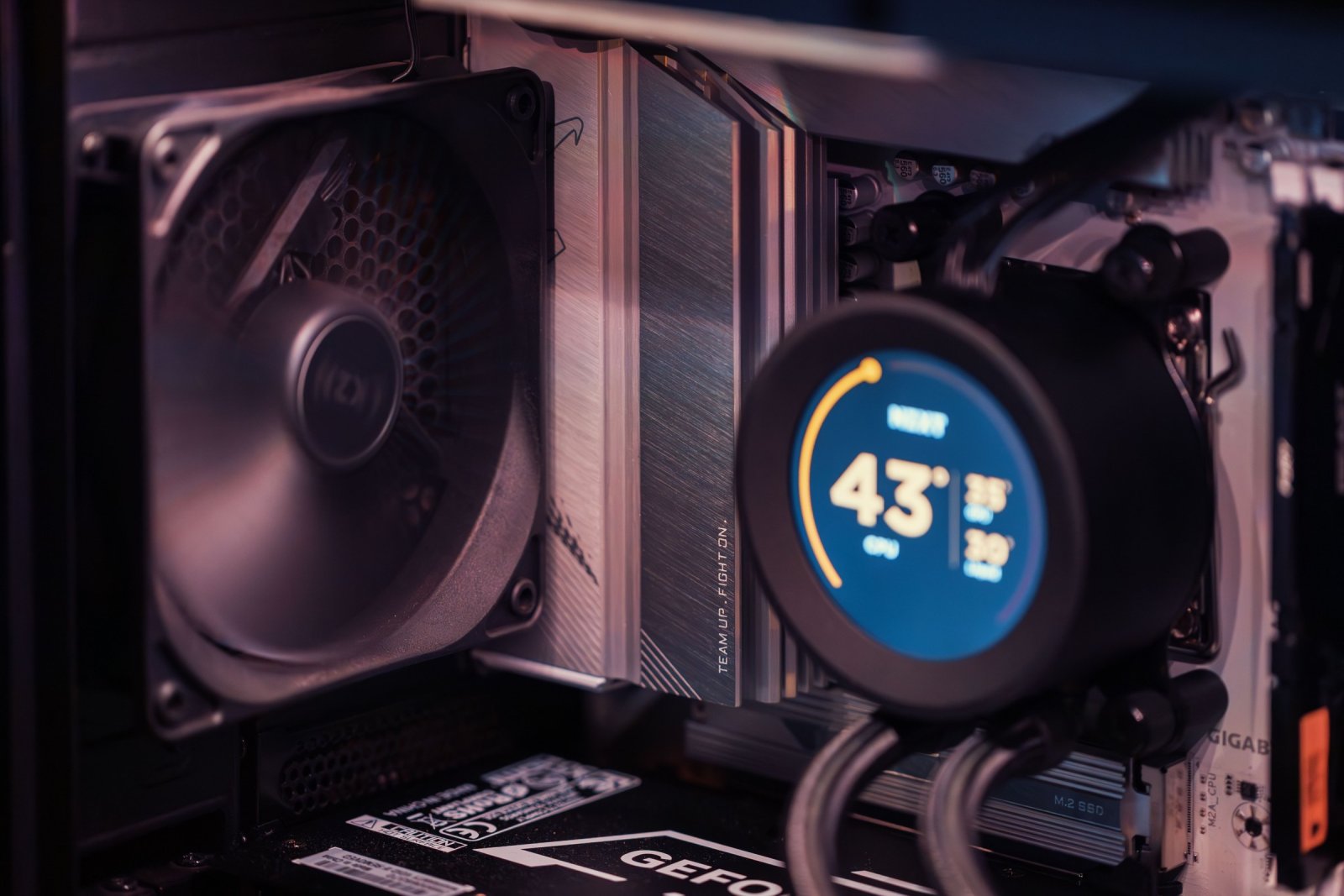
Intel's wording tells you what a good result looks like: the discrete GPU in use. A card idling at 0% with the game running is the opposite. One Tom's Hardware forum thread, titled “my computer only uses onboard graphics instead of the gpu,” describes that pattern: the dedicated card listed in Task Manager at 0% while the onboard graphics drive the display. It is one user's report, and anecdotal.
Windows 11's own setting is the second check. Pureinfotech's walkthrough gives the path as Settings > System > Display > Graphics, where you pick the game and choose between Let Windows decide, Power saving and High performance. High performance, in Pureinfotech's words, “runs the app on the most capable GPU, usually an external or discrete graphics processor,” so by its description that is the setting that puts a game on the card. The choice is made per app, so each game gets its own.
Nvidia and AMD cards come with their own control panels too, but no Nvidia or AMD support page on using them for this check was available at the time of writing.
What if the screen goes black after I move it?
Tell the monitor which input to use. That step is part of Engadget's fix, which runs in this order.
- Shut the PC down fully.
- Move the cable to one of the outputs on the graphics card's bracket.
- Turn the PC on, then use the monitor's input or source button to select the input that matches the port and cable you are now using.
- Once the picture is back, open Settings > System > Display > Advanced display and check the refresh rate.
Engadget starts with a full shutdown and ends with the refresh rate, so the job isn't finished the moment a picture comes back.
A black screen can also come from the other direction: a motherboard port on a PC that has a card. Intel's support article says the motherboard's video port only uses the integrated graphics, “which may be disabled when using discrete graphics.” So a blank motherboard port on a PC with a working card is possible, and the card's outputs are where the picture comes from.
Some processors have no integrated graphics to disable. PC Gamer explains Intel's suffixes: F marks a desktop chip that lacks integrated graphics, and KF means one that is both unlocked (the K) and without integrated graphics (the F). Put that beside Intel's line that the motherboard port only uses the integrated graphics, and an F or KF chip gives no picture from the motherboard's video outputs at all. On those PCs the card's bracket is the only place the cable can go.
BGR's rule from the first section is the flip side. AMD chips with a G and Intel chips without an F have integrated graphics, so their motherboard ports have something to run them, though Intel's note that it may be disabled alongside a discrete card still applies.
Does this apply to laptops and integrated graphics?
Not in the same way. A laptop's built-in screen is wired inside the case, so there's no cable to move.
Intel's Task Manager page is in fact written for systems that have both an integrated chip and a discrete one, such as laptops, so the check from the second section applies there too. The same page warns that some applications may be locked by their developer to run on specific GPUs. “In such cases you need to check with OEM,” Intel says, and on a laptop the OEM is the laptop maker. The Windows Graphics setting from the second section is there on any Windows 11 PC with two GPUs, laptops included.
The other exception is a desktop with no graphics card. There the motherboard port is the right one, and BGR's rule covers it: those outputs are for processors with integrated graphics. Moving the cable only helps if a separate card is sitting in the case.
What performance do I get back?
An unknown amount. Engadget notes that Microsoft doesn't state a percentage of performance loss when frames pass through the integrated graphics, and that the impact varies.
BGR goes as far as saying that connecting the cable to the right place “prevents performance loss and unnecessary scares,” and no further. The scares part, at least, needs no benchmark.
What you can check is your own machine. After the move, run Intel's Task Manager check again with the game open and see whether the card's entry is now being used, then look at the refresh rate under Advanced display, which is the last step of Engadget's fix. If the card's entry shows use with the game running, the move did what it was for.
Moving a cable is free, which makes it the right first check, and only your own PC can show what it is worth in frames.

Tomasz Kowalczyk
Tomasz Kowalczyk writes the home and family guides. Father of two, near Krakow.
View profileMore from Tomasz Kowalczyk
View all →


Recommended for you
More stories →
Your Ethernet Is Probably Running at 100 Mbps, and Wi-Fi Is Beating It

Outlook is recovering on day two, and Microsoft says it has no indication of a hack
Which Xiaomi, Redmi and Poco Phones Get HyperOS 4, and Which Were Dropped
Leave a Comment